Skip to content

How takeoffs work.
From plan to export.

Choose your trade, upload PDF plans, and work with editable quantities linked to their source sheets. Export your takeoff or build a priced estimate.

The takeoff workflow

  1. 01

    Create the project

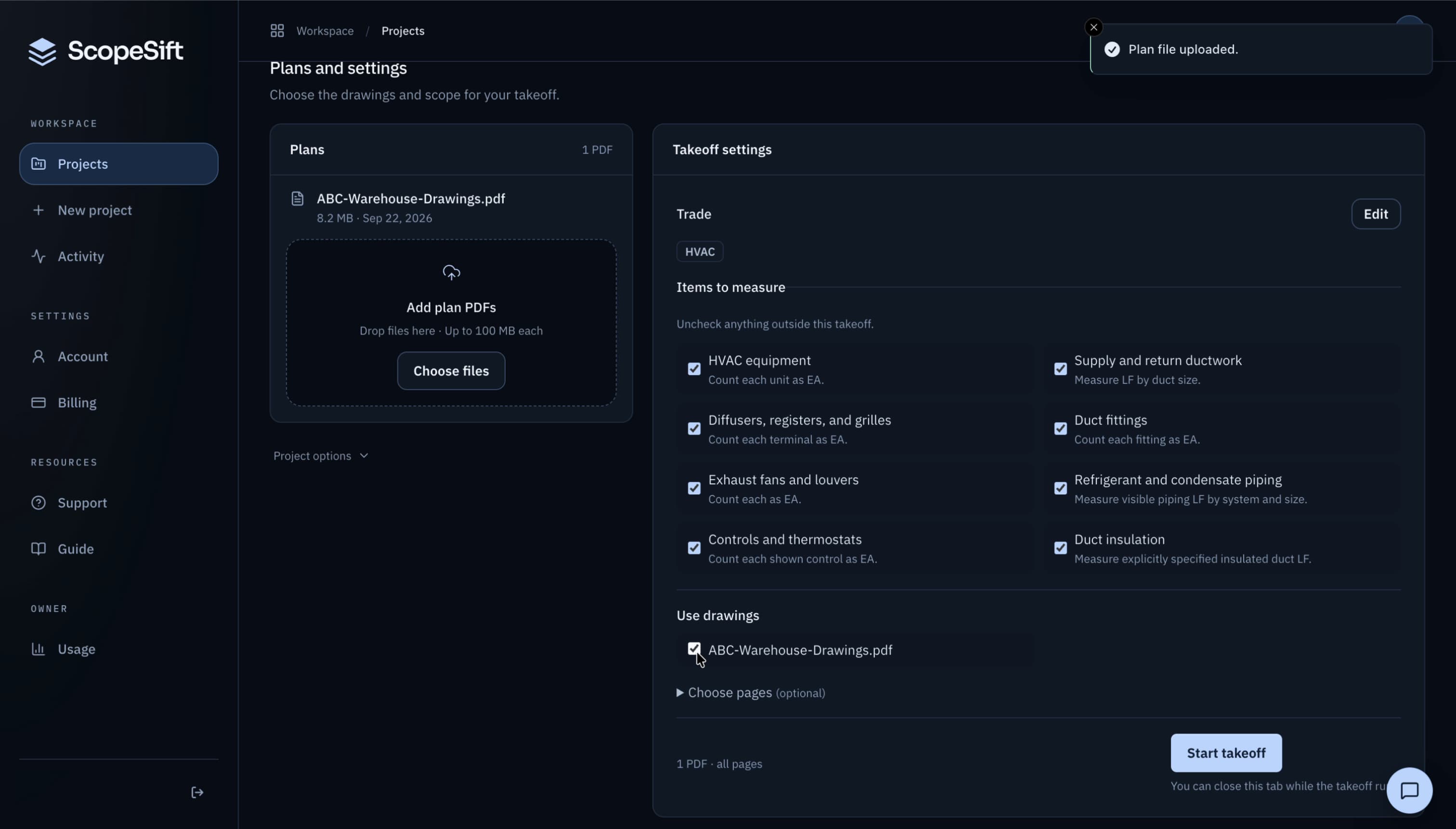
    Name the job, add the builder and job number, and select one trade: HVAC, siding, or electrical.

  2. 02

    Drop in the plan set

    One PDF and one trade (HVAC, siding, or electrical) per takeoff, up to 100 MB and 250 pages, or up to five selected pages from that PDF. Uploads resume if your connection drops. ScopeSift identifies relevant sheets for the selected trade.

  3. 03

    Draft the measurements

    Start the takeoff. Processing continues if you close the tab. Completed runs open Results; confirm the scale if prompted. Any incomplete pages are identified.

  4. 04

    Inspect the drawing if needed

    Measured items are shown on their source sheets. Check the shapes against the plan, drag a vertex, redraw a run, delete a shape or a whole material. Totals update as you work.

  5. 05

    Set waste and export

    The results table shows every condition with its source sheet. Adjust waste per line, pick your columns, and export CSV or Excel your estimating workflow can take straight into the bid.

ScopeSift project setup with a mechanical drawing file and HVAC items selected for takeoff

Measurements by trade

Each trade measures the work shown in its source drawings. Choose one trade per run; use separate takeoffs when a project covers multiple trades.

HVAC

Reads
Mechanical plans, duct size tags, and equipment schedules.
Measures
Duct lengths in linear feet by size and system, plus air-device and equipment counts from plan symbols.
You get
Lengths and counts linked to their source sheets. Inspect paths, add missing items, or correct a quantity on the drawing.
Explore HVAC takeoff

Siding

Reads
Elevations, material labels, dimensions, and opening details.
Measures
Siding surfaces in square feet, opening deductions, and linear trim in feet. Inspect the outlined surfaces and openings on the drawing.
You get
Area and length quantities linked to their source sheets. Edit boundaries or openings and check the resulting net area.
Explore siding takeoff

Electrical

Reads
Electrical plans, legends, device symbols, and fixture labels.
Measures
Device and fixture counts, plus lengths of routes explicitly drawn on the plan. Connection arcs alone do not establish installed wire length.
You get
Counts and drawn-route measurements tied to the source drawing. Add your installation allowances and pricing in the estimate.
Explore electrical takeoff

Drawing editor

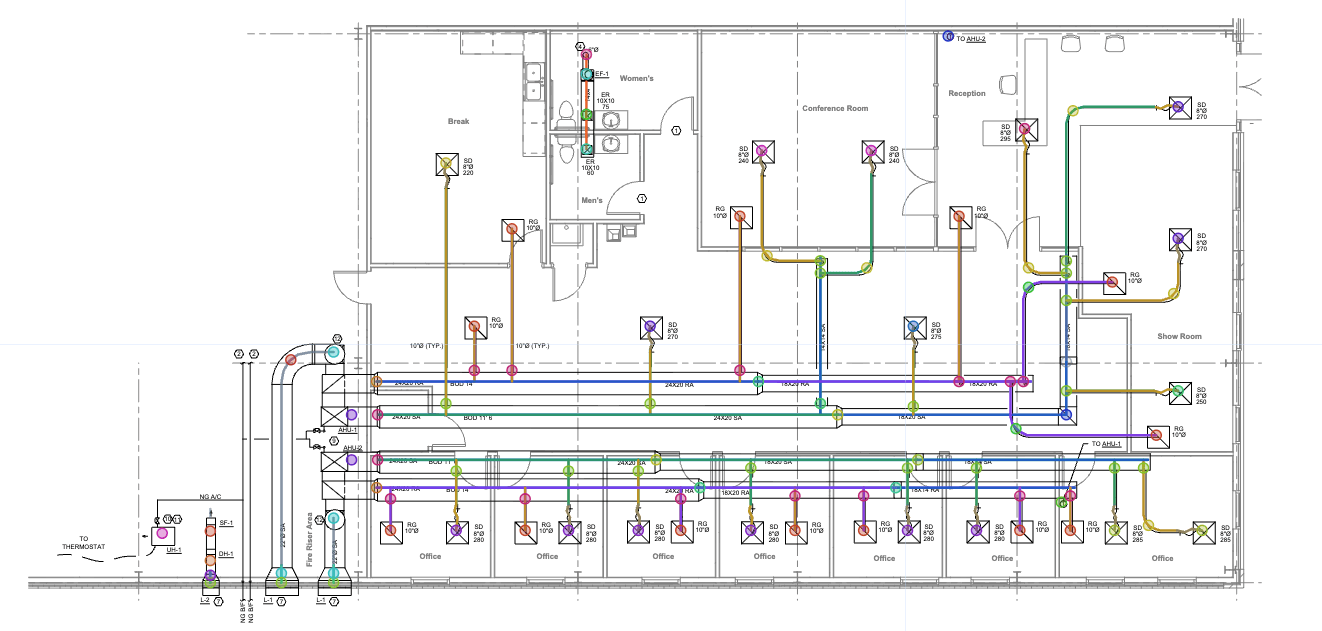
Select a shape to drag its vertices. Use the toolbar to draw polygons, runs, and count markers, or delete a shape or a whole material. Every edit is undoable.

Clicking a row's crosshair button in the Results table jumps the viewer to the exact shapes that produced the number, and while you hover the sheet, a crosshair with a feet-and-inches readout tracks your cursor on any page with a verified scale.

ScopeSift drawing editor zoomed into measured duct runs on a mechanical plan

Keyboard

Deselect, or close an open menuEsc
Confirm the shape you're drawing or editingEnter
Delete the selected shapeDelete
Reject the selected shape (kept in history, out of totals)R
Undo while editing⌘Z
Redo while editing — ⌘ Y works too⌘ShiftZ
Save your edits⌘S
Nudge the active vertex or shape — hold Shift for ×10Arrows
Insert or remove a vertex on the selected shapeAltClick

⌘ is Ctrl on Windows.

Quantity calculations

Hover any row in the Results table and the formula bar shows what built the number: the measured geometry, the sheet it lives on, and the result:

fx =LENGTH(duct paths on a mechanical sheet) → LF by duct size

Set waste per line. The table shows raw and net quantities separately, and CSV and Excel exports include each row’s source sheet.

Coverage & limits

  • HVAC, siding, and electrical are available. Choose one trade per takeoff. Combined runs, flooring, roofing, drywall, and paint are not available for new customer runs.
  • Unverifiable scale means held quantities. When the sheet's scale can't be confirmed against drawn dimensions, confirm the scale to calculate affected quantities.
  • Partial coverage is called out. If a page couldn't be fully measured, the run identifies the page and explains the gap.
  • The estimator has the last word. ScopeSift drafts; you decide. Every shape is editable and nothing exports until you say so.

Start a takeoff.

Your first takeoff is free, with no credit card required. Bring a plan set you've already bid to inspect the quantities against your own. One free first takeoff per account.